
Getting Started
This content is for the 0.1.0 version. Switch to the latest version for up-to-date documentation.
This guide walks you through the prerequisites and initial setup required to build your RPG Maker MV and MZ games as native applications using Ludens.
How Ludens Works
Section titled “How Ludens Works”Before starting, it’s helpful to understand the architecture: Ludens does not natively recompile your game’s JavaScript code into Java/Kotlin. Instead, it takes your web-exported RPG Maker game and wraps it in a Compose Multiplatform container. It runs the game using a native mobile WebView while rendering a transparent native UI overlay on top of it. This overlay contains the virtual joystick and action buttons, which communicate with the underlying game engine by injecting JavaScript events.
Prerequisites
Section titled “Prerequisites”Android Studio
Section titled “Android Studio”Download and install Android Studio. Version Otter 2 Feature Drop | 2025.2.2 or higher is recommended.
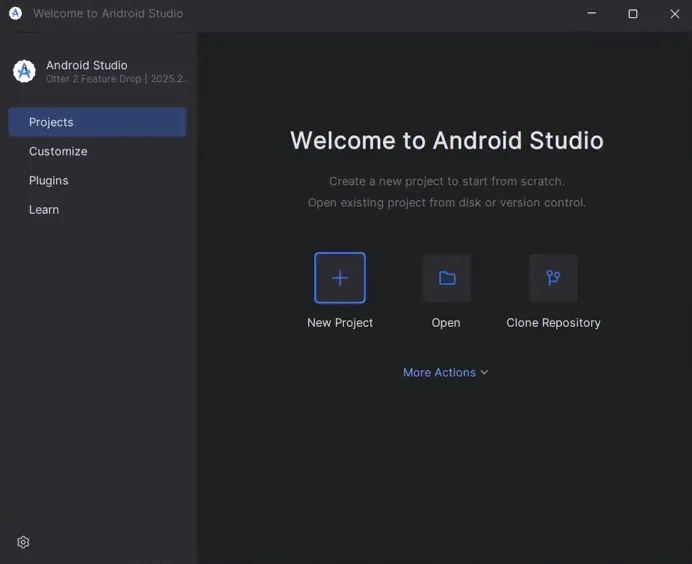
Ensure the following components are included during installation:
- Android SDK
- Android SDK Platform-Tools
- Android Virtual Device (recommended for testing)
Java Development Kit (JDK)
Section titled “Java Development Kit (JDK)”The project requires Java 17 or higher. Android Studio usually includes a compatible version (JetBrains Runtime), but you can install JDK 17 manually if needed. If you are building outside of Android Studio, make sure the JAVA_HOME environment variable is set.
Gradle Build Tool
Section titled “Gradle Build Tool”Ludens includes a Gradle Wrapper, meaning you do not need to install Gradle manually. The project uses the included script (gradlew for macOS/Linux, gradlew.bat for Windows) to ensure the correct Gradle version is used automatically.
RPG Maker MV/MZ Game
Section titled “RPG Maker MV/MZ Game”You need your RPG Maker project exported for web deployment. See the Game Export section for details.
Recommended Plugin
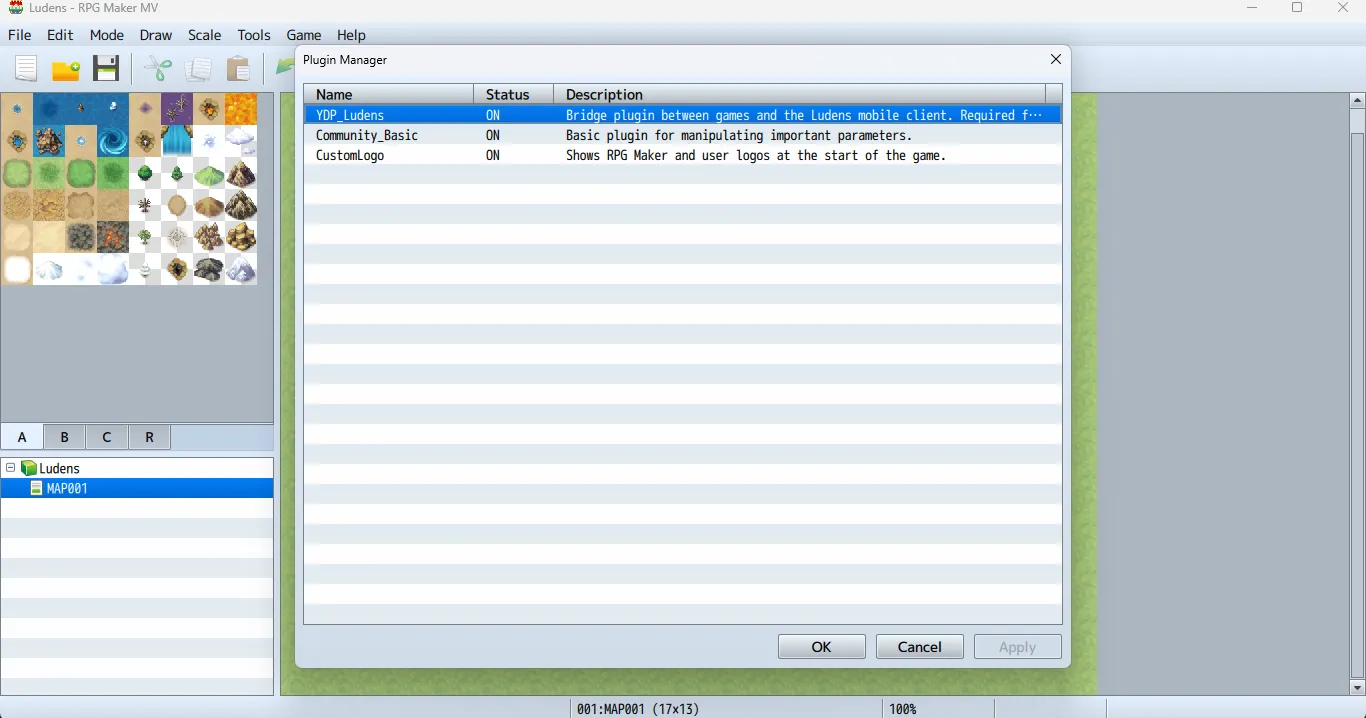
Section titled “Recommended Plugin”Including the YDP_Ludens.js plugin in your RPG Maker project is optional but highly recommended:
- Font Loading Fix: RPG Maker MV relies on outdated document synchronous loading methods for fonts. Modern Android WebViews block this, resulting in missing text. The plugin patches the engine to use modern, asynchronous Web Font APIs.
- Engine Bridge: Enables smoother communication between the Ludens native client and the game engine.
- Placement: It must be the first plugin in your plugin manager list to ensure it patches core behaviors before any other plugin executes.
- Latest version and other recommended plugins are available at the rpgm-plugins repository.
Get the Project
Section titled “Get the Project”- Clone the repository or download it as a ZIP and extract it:
Terminal window git clone https://github.com/yoimerdr/ludens.git - Open Android Studio.
- Select Open and navigate to the
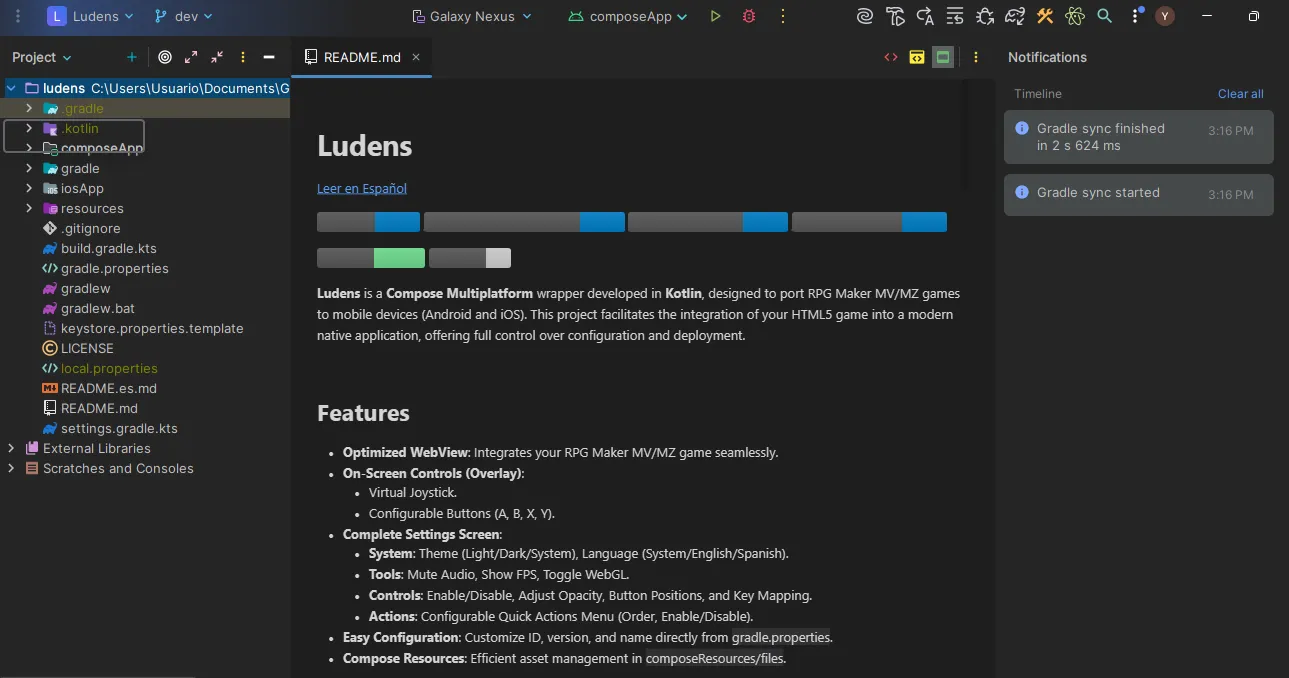
ludensproject folder. - Wait for Gradle to finish syncing. Note: The first time you open the project, Gradle will download the required dependencies. This process can take several minutes and download around 500MB of data.
Game Orientation
Section titled “Game Orientation”By default, the Ludens application is configured to run in Landscape mode (sensorLandscape). If your game is designed for Portrait mode, you will need to change this configuration in the Android Manifest. See the Android Configuration guide for details.
Directory Structure
Section titled “Directory Structure”Once the project is open, familiarize yourself with these key locations:
Directoryludens/
DirectorycomposeApp/
Directorysrc/
DirectorycommonMain/
DirectorycomposeResources/
Directoryfiles/ Your game goes here
- …
- gradle.properties App configuration
- keystore.properties.template Signing template
Next Steps
Section titled “Next Steps”Once your environment is ready, proceed to:
- Export your game from RPG Maker.
- Configure and build your Android APK.