
Game Export
This content is for the 0.1.0 version. Switch to the latest version for up-to-date documentation.
This section covers exporting your game from RPG Maker and placing the assets in the correct location for Ludens to build.
Export from RPG Maker
Section titled “Export from RPG Maker”- Open your project in RPG Maker MV or MZ.
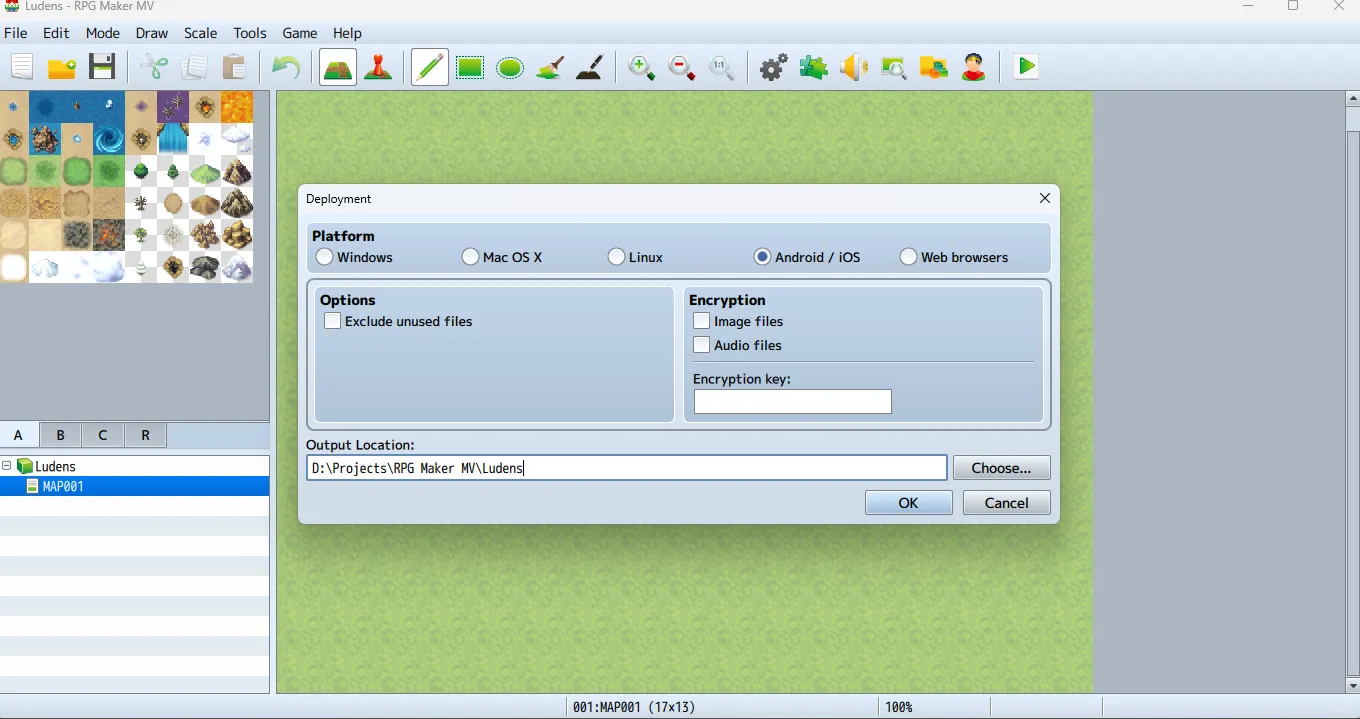
- Go to File > Deployment.
- Select the Android / iOS platform (recommended). If unavailable, select Web Browsers.
- Export the game.
MV vs. MZ Differences
Section titled “MV vs. MZ Differences”Depending on the engine version (MV or MZ), the deployment result varies:
- RPG Maker MV: The deployment typically generates a
wwwsubfolder containing all your decrypted assets and theindex.htmlfile. - RPG Maker MZ: It might generate the
wwwfolder directly or just the root files.
The important thing is to locate the directory where the index.html file and the game assets reside.
Import Assets into Ludens
Section titled “Import Assets into Ludens”This is the most critical step.
-
Navigate to the project folder in your file explorer:
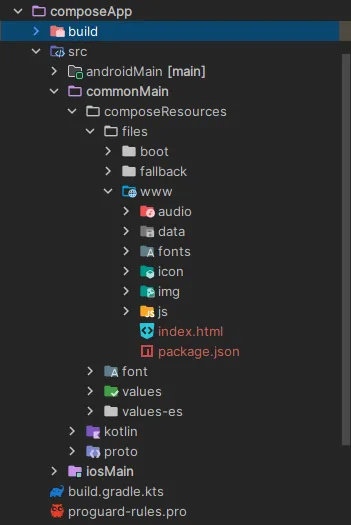
composeApp/src/commonMain/composeResources/files -
Copy the entire
wwwfolder from your export and paste it insidefiles.If you only have the game assets without the
wwwwrapper, create awwwfolder insidefilesand paste the assets there.
Expected Structure
Section titled “Expected Structure”Directoryfiles/
Directorywww/
Directoryaudio/
- …
Directorydata/
- …
Directoryfonts/
- …
Directoryimg/
- …
Directoryjs/
- …
- …
- index.html
Verification
Section titled “Verification”After placing the files, verify in Android Studio that:
- The
files/www/folder appears in the project explorer. - The
index.htmlfile is present at the root of thewwwfolder. - All game subdirectories (
audio/,img/,js/, etc.) are intact.
Common Pitfalls
Section titled “Common Pitfalls”When importing assets, keep these common issues in mind:
- Large File Sizes: Mobile APKs have size limits, and large assets will consume the user’s phone storage quickly. Before deploying, aggressively compress your
.pngfiles (using tools like TinyPNG) and.ogg/.m4aaudio files. - Missing Audio Formats (RPG Maker MV): RPG Maker MV generally requires
.m4a(AAC) audio files for mobile compatibility, as older WebViews might struggle with.ogg. Ensure your MV project contains both formats in theaudiofolder. RPG Maker MZ, on the other hand, natively supports and uses.oggwithout issues.
Next Steps
Section titled “Next Steps”With your assets in place, proceed to configure and build your application.