
Android Configuration
This content is for the 0.1.0 version. Switch to the latest version for up-to-date documentation.
All application identity and build properties are managed through gradle.properties in the project root. No Kotlin code changes are required for basic customization.
Application Properties
Section titled “Application Properties”Edit the gradle.properties file in the project root:
# Unique application identifier (reverse domain format)ludens.applicationId=com.yourorganization.sample
# Version visible to the userludens.applicationVersion=1.0
# Application name displayed in system settingsludens.applicationName=Game Name
# Short name displayed under the home screen iconludens.applicationLauncherName=Game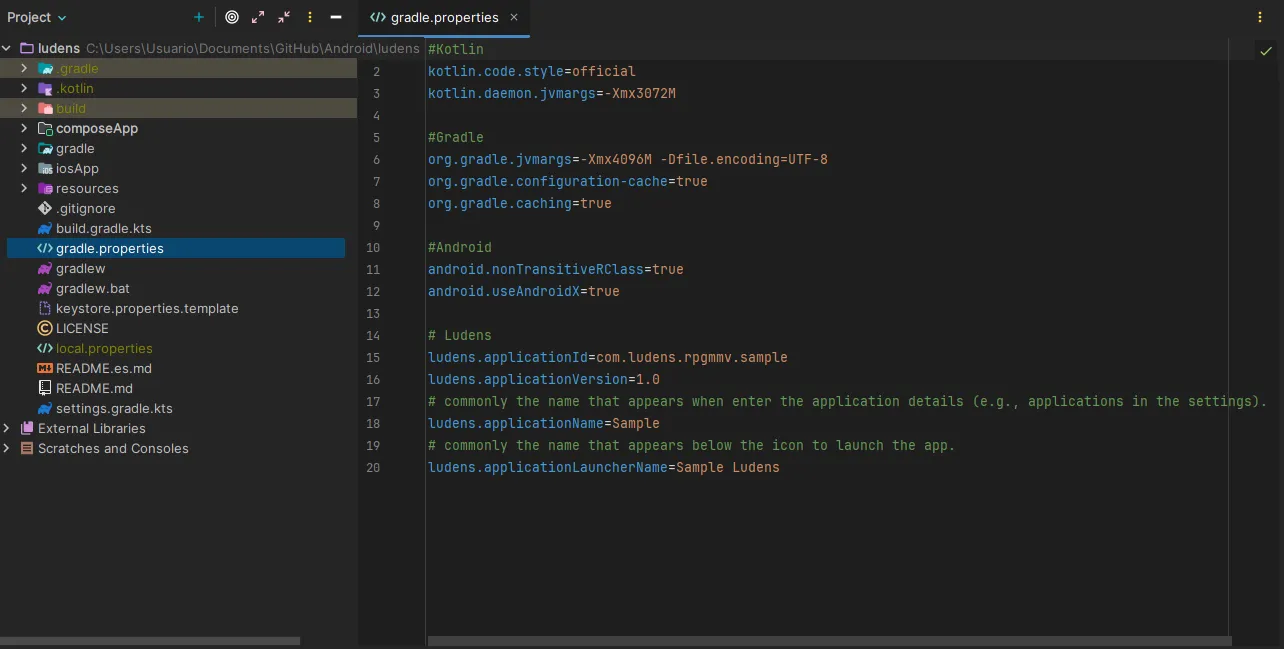
Property Reference
Section titled “Property Reference”| Property | Format | Description |
|---|---|---|
ludens.applicationId | com.domain.name | Unique identifier for the app. Must be unique on the Play Store. |
ludens.applicationVersion | x.y (e.g., 1.0) | User-visible version string. |
ludens.applicationName | Free text | Full application name shown in system settings. |
ludens.applicationLauncherName | Short text | Name displayed under the home screen icon. |
Application Icon
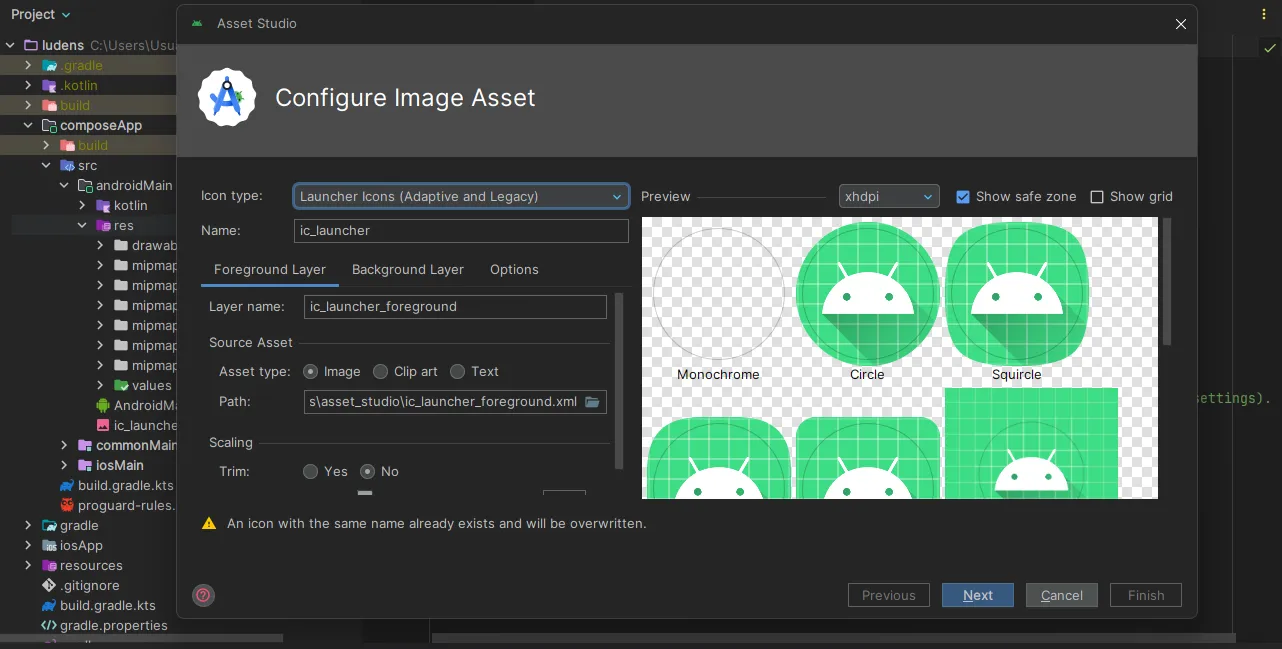
Section titled “Application Icon”Replace the default icon by updating the images in composeApp/src/androidMain/res/mipmap-* directories, or use the Image Asset Studio tool in Android Studio:
- Right-click on
composeApp/src/androidMain/res. - Select New > Image Asset.
- Configure the icon using your game’s artwork.
The mipmap-* directories contain icons at different resolutions:
| Directory | Resolution |
|---|---|
mipmap-mdpi | 48×48 px |
mipmap-hdpi | 72×72 px |
mipmap-xhdpi | 96×96 px |
mipmap-xxhdpi | 144×144 px |
mipmap-xxxhdpi | 192×192 px |
Signing Configuration
Section titled “Signing Configuration”For release builds, you need a signing keystore. Create a keystore.properties file in the project root using the provided template:
storePassword=your_store_passwordkeyPassword=your_key_passwordkeyAlias=your_aliasstoreFile=C:/Path/To/Your/key.jksA keystore.properties.template file is included in the repository for reference.
Manifest Customization
Section titled “Manifest Customization”For more advanced configuration beyond what gradle.properties offers, you can directly edit the AndroidManifest.xml file.
The manifest file is located at:
composeApp/src/androidMain/AndroidManifest.xml
Game Orientation
Section titled “Game Orientation”By default, Ludens forces the application into landscape mode using sensorLandscape. This ensures the game rotates according to the device sensor but stays in a horizontal orientation.
To change this, locate the <activity> tag in your manifest and modify the android:screenOrientation attribute.
Common Orientations
Section titled “Common Orientations”| Value | Behavior |
|---|---|
sensorLandscape | (Default) Landscape only, auto-rotates between left and right landscape based on sensor. |
sensorPortrait | Portrait only, auto-rotates between normal and upside-down portrait based on sensor. |
landscape | Fixed landscape orientation (ignoring sensor). |
portrait | Fixed portrait orientation (ignoring sensor). |
fullSensor | Allows rotation to any of the 4 orientations. |
Example for a portrait game:
<activity android:exported="true" android:screenOrientation="sensorPortrait" android:configChanges="orientation|screenSize" android:name=".MainActivity" android:label="@string/app_launcher_name"> ...</activity>Adding Permissions
Section titled “Adding Permissions”If your RPG Maker plugins require access to device hardware (like the camera, microphone, or internet access), you must declare those permissions in the manifest. Ludens does not enforce any specific permissions by default to keep the app as privacy-friendly as possible.
For example, if your game features an AR (Augmented Reality) mini-game plugin, you will need the CAMERA permission. Or if your game fetches highscores from an online leaderboard, you will need INTERNET.
Add the <uses-permission> tag as a direct child of the <manifest> element (outside the <application> tag).
Example: Adding Microphone permission:
<manifest xmlns:android="http://schemas.android.com/apk/res/android">
    <!-- Add new permissions here -->    <uses-permission android:name="android.permission.RECORD_AUDIO" />
    <application>        ...    </application></manifest>
App Backup Configuration
Section titled “App Backup Configuration”By default, the manifest includes android:allowBackup="true". This allows Android’s built-in backup service to back up your app’s data to the user’s Google Drive.
If your game contains sensitive data or if you want to opt out of the auto-backup system, you can change this to false.
<application android:allowBackup="false" ... >