
Android Configuration
Android-specific application identity and manifest properties are managed through
ludens.properties in the project root. This system allows you to customize your app without
touching Kotlin code or complex build scripts.
Application Identity
Section titled “Application Identity”These properties define the package name, version, and names shown by the Android system.
# ----- Android Identity -----ludens.android.id=com.ludens.compose.ludensludens.android.version=0.4.0ludens.android.versionCode=1ludens.android.name=Ludensludens.android.launcherName=Ludensludens.android.minSDK=21ludens.android.targetSDK=36ludens.android.immersive=trueConfigure these properties using the ludens.android.* prefix:
| Property | Type | Default | Description |
|---|---|---|---|
id | String | com.ludens.compose.ludens | Unique application identifier (package name). |
version | String | 0.4.0 | Visible version name shown to the user. |
versionCode | Integer | 1 | Internal version code used for Play Store updates. |
name | String | Ludens | Full application name in system settings. |
launcherName | String | Ludens | Name displayed under the home screen icon. |
minSDK | Integer | 21 | Minimum Android API level supported. |
targetSDK | Integer | 36 | Target Android API level for the build. |
immersive | Boolean | true | Enables immersive mode (hides system bars). |
Application Icon
Section titled “Application Icon”Ludens includes an automated App Icon Generator plugin that creates launcher icons for all target platforms from a single source image (SVG or PNG).
Automated Generation (Recommended)
Section titled “Automated Generation (Recommended)”- Place your source icon image inside the
project/assets/icons/directory.- For best results, use a vector image named
icon.svgor a high-resolution raster image namedicon.png(at least 512x512 pixels). - If you want to use separate adaptive layers for Android, you can place
icon_foreground.svg/icon_foreground.pngandicon_background.svg/icon_background.pngin that same directory.
- For best results, use a vector image named
- Configure the icon generator in
ludens.properties:
# Name of the source master icon in project/assets/icons/ludens.icons.name=icon
# Name of the foreground adaptive layer in project/assets/icons/ludens.icons.foreground=icon_foreground
# Solid hex color background or resource referenceludens.icons.background=#FDFDFD
# Android-specific configurationludens.icons.android.enable=trueludens.icons.android.format=webpludens.icons.android.playstore=true
# iOS-specific configurationludens.icons.ios.enable=true
# Scale of the foreground asset inside the adaptive icon viewportludens.icons.scale=0.62- Build the project. The build system will automatically generate:
- Android: Legacy round and square mipmap icons, XML adaptive icon sheets under
mipmap-anydpi-v26, and vector/raster layers (ic_launcher_foreground,ic_launcher_background) placed inandroidMain/res/. - iOS: All required AppIcon sizes (iPhone, iPad, App Store) along with the corresponding
Contents.jsonasset catalog manifest underiosApp/iosApp/Assets.xcassets/AppIcon.appiconset. - Google Play Store: A high-resolution
ic_launcher-playstore.png(512x512) listing icon.
- Android: Legacy round and square mipmap icons, XML adaptive icon sheets under
Manual Configuration (Alternative)
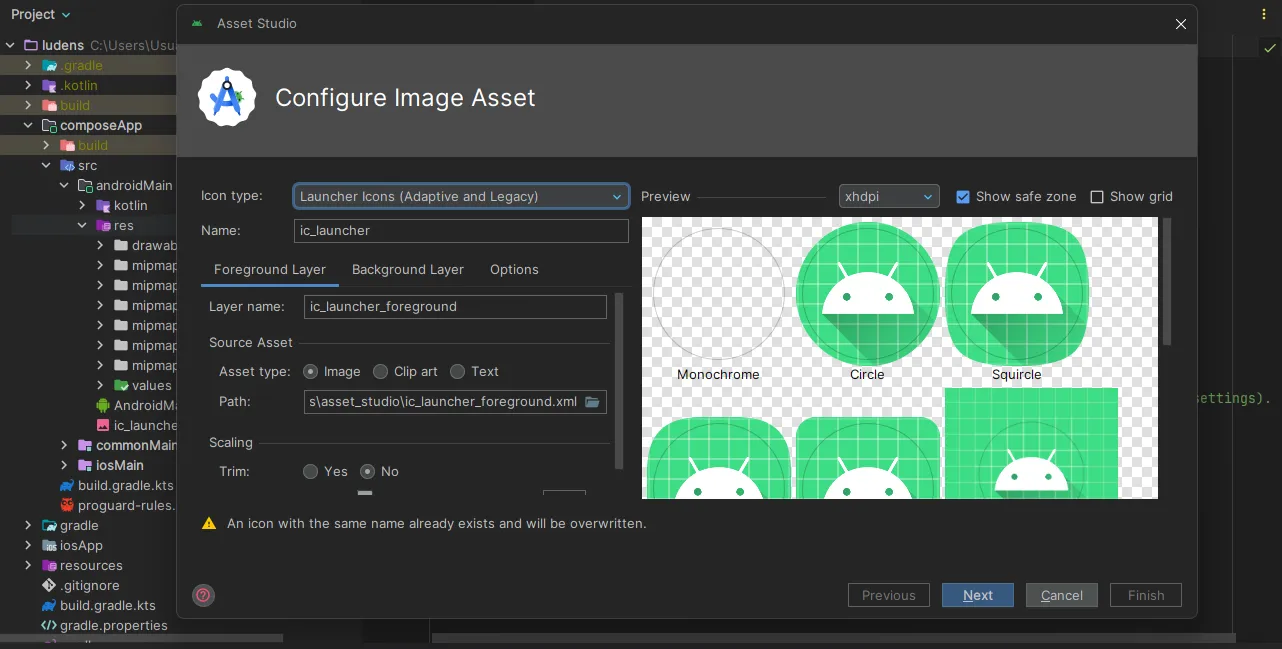
Section titled “Manual Configuration (Alternative)”If you prefer to generate your assets manually or use the standard Android developer tools:
- Right-click on the
composeApp/src/androidMain/resdirectory in Android Studio. - Select New > Image Asset.
- Use the Asset Studio wizard to configure your layers and scale.
Manifest Configuration
Section titled “Manifest Configuration”Ludens automatically generates the AndroidManifest.xml based on these properties. This allows for
safe and predictable manifest management.
# ----- Android Manifest -----ludens.android.manifest.allowBackup=trueludens.android.manifest.largeHeap=trueludens.android.manifest.hardwareAccelerated=trueludens.android.manifest.screenOrientation=sensorLandscapeludens.android.manifest.usesCleartextTraffic=falseludens.android.manifest.resizeableActivity=falseGame Orientation
Section titled “Game Orientation”By default, Ludens forces the application into landscape mode using sensorLandscape. This ensures
the game rotates according to the device sensor but stays in a horizontal orientation. To change
this, modify the ludens.android.manifest.screenOrientation property.
Common Orientations
Section titled “Common Orientations”| Value | Behavior |
|---|---|
sensorLandscape | (Default) Landscape only, auto-rotates between left and right landscape based on sensor. |
sensorPortrait | Portrait only, auto-rotates between normal and upside-down portrait based on sensor. |
landscape | Fixed landscape orientation (ignoring sensor). |
portrait | Fixed portrait orientation (ignoring sensor). |
fullSensor | Allows rotation to any of the 4 orientations. |
Property Reference
Section titled “Property Reference”Configure these properties using the ludens.android.manifest.* prefix:
| Property | Type | Mapping | Description |
|---|---|---|---|
allowBackup | Boolean | android:allowBackup | Whether Android can back up app data to Google Drive. |
largeHeap | Boolean | android:largeHeap | Requests a larger heap for memory intensive games. |
hardwareAccelerated | Boolean | android:hardwareAccelerated | Enables GPU acceleration for the UI. |
screenOrientation | String | android:screenOrientation | Defines the display orientation (see table above). |
usesCleartextTraffic | Boolean | android:usesCleartextTraffic | Allows cleartext HTTP traffic (Not recommended). |
resizeableActivity | Boolean | android:resizeableActivity | Allows the activity to be resized by the system. |
Permissions
Section titled “Permissions”If your RPG Maker plugins require access to device hardware or network services, you must declare those permissions. Ludens makes this easy with built-in toggles.
For example, if your game fetches highscores from an online leaderboard, you will need the
internet permission. If your game should prevent the screen from turning off during long
cutscenes, use the wakeLockpermission.
# ----- Android Permissions -----ludens.android.permissions.internet=falseludens.android.permissions.networkState=falseludens.android.permissions.wakeLock=falseludens.android.permissions.accessWifiState=falseludens.android.permissions.changeWifiState=falseDeclare these permissions under the ludens.android.permissions.* prefix:
| Property | Type | Mapping | Description |
|---|---|---|---|
internet | Boolean | INTERNET | Grants network access for online features. |
networkState | Boolean | ACCESS_NETWORK_STATE | Access to connectivity and network type info. |
wakeLock | Boolean | WAKE_LOCK | Keeps the CPU awake while rendering or playing. |
accessWifiState | Boolean | ACCESS_WIFI_STATE | Grants access to Wi-Fi connection state. |
changeWifiState | Boolean | CHANGE_WIFI_STATE | Permission to change Wi-Fi connectivity. |
Advanced: Manual Manifest Customization
Section titled “Advanced: Manual Manifest Customization”For configurations not covered by ludens.properties, edit the manifest directly at:
composeApp/src/androidMain/AndroidManifest.xml
Adding Custom Permissions
Section titled “Adding Custom Permissions”If your plugins require hardware access like the Camera or Microphone, add the <uses-permission>
tag as a direct child
of the <manifest> element.
Example: Adding Microphone permission:
<manifest xmlns:android="http://schemas.android.com/apk/res/android">
    <!-- Add new permissions here -->    <uses-permission android:name="android.permission.RECORD_AUDIO" />
<application>...</application></manifest>Signing Configuration
Section titled “Signing Configuration”For release builds, you need a signing keystore. Create a keystore.properties file in the project
root based on the
keystore.properties.template file:
storePassword=your_store_passwordkeyPassword=your_key_passwordkeyAlias=your_aliasstoreFile=C:/Path/To/Your/key.jksError & Debug Diagnostics
Section titled “Error & Debug Diagnostics”Ludens provides a built-in hybrid error interception system to help you diagnose game crashes and WebView load failures.
# ----- WebView Debug & Error Reporting -----# Enable rich error interception and show a detailed traceback Dialog for game runtime errors.ludens.debug.errors=trueConfigure this property using the ludens.debug.* prefix:
| Property | Type | Default | Description |
|---|---|---|---|
errors | Boolean | true | Enables WebView runtime error interception and traceback dialog. |
How It Works
Section titled “How It Works”When ludens.debug.errors is set to true:
- JavaScript Exceptions: Ludens injects an error listener into the game WebView to capture unhandled JavaScript runtime exceptions and unhandled promise rejections.
- Native Load Failures: The native WebView client intercepts resource loading failures (e.g., missing files, incorrect paths, 404 errors).
- Traceback Dialog: Instead of silently failing or showing a black screen, Ludens renders a native Compose Multiplatform dialog with the detailed exception message and stack trace.
- Copy to Clipboard: Copy the complete technical traceback for debugging.
- Restart: Instantly reload the WebView and restart the game.